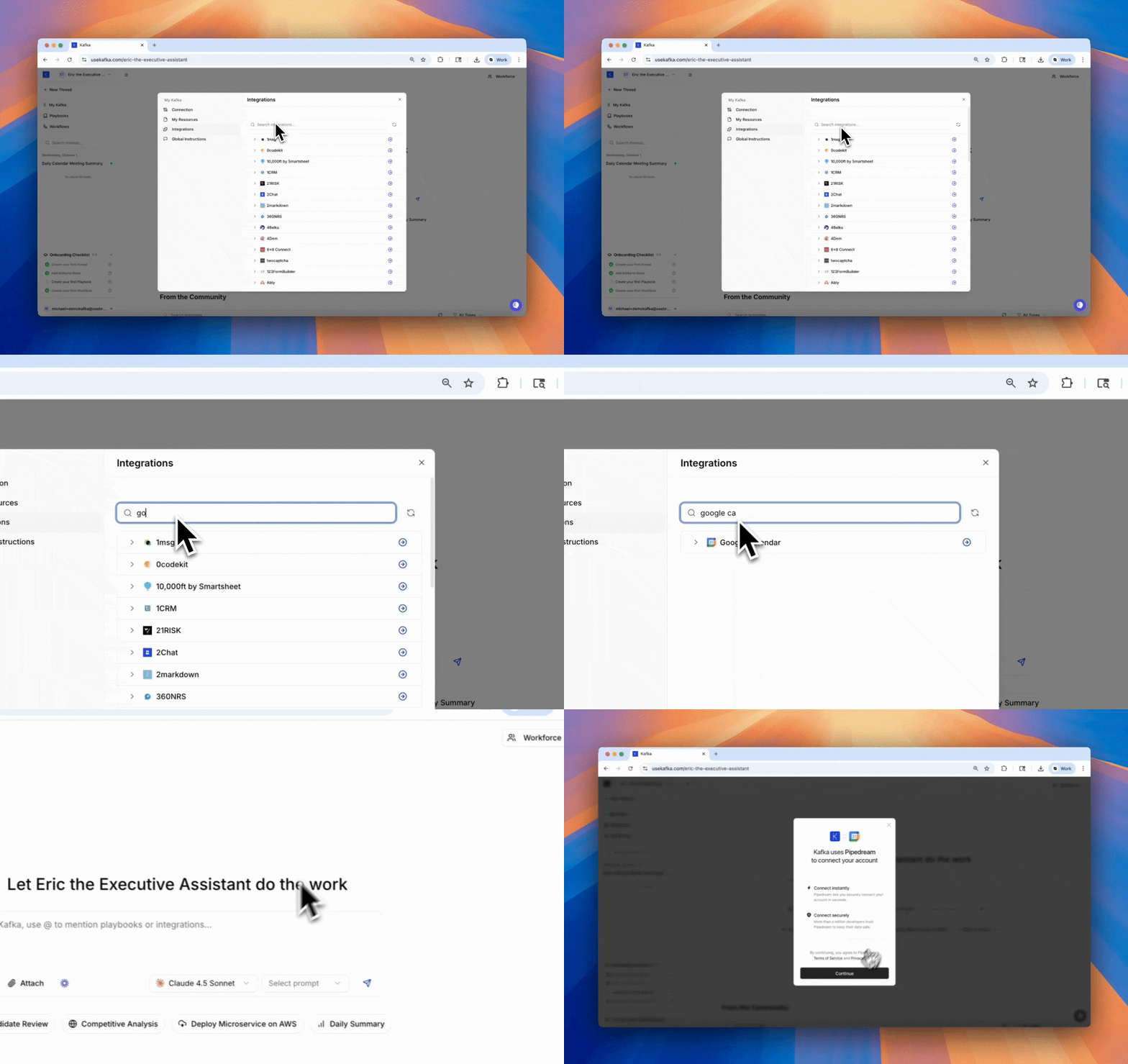
Connect Kafka to your existing tools and data sources, allowing your AI Employee to take action across your tech stack. Browsing Kafka integrations

How Integrations Work

Kafka uses Pipedream to power integrations. When you connect an integration using OAuth, Kafka acts as you — gaining the same access and permissions you have in that tool. This means:
  • Kafka can read your emails in Gmail
  • Create tasks in ClickUp under your account
  • Send Slack messages as you
  • Search for candidates in Apollo with your credentials
Once connected, reference integrations in workflows, playbooks, and conversations using the @ symbol:
@gmail — Access your email
@slack — Send messages and read channels
@clickup — Create and manage tasks
@apollo — Search for people and companies
Kafka automatically uses the appropriate integration based on your instructions.

Example Usage

In a Workflow:
name: Daily Task Sync
trigger: daily at 5 pm

Content:
1. Scan through @slack for any new action items
2. Create tasks in @clickup with proper assignments
3. Send confirmation in @slack thread
In a Playbook:
name: Schedule Interview
activation_criteria: When candidate passes initial screen

Instructions:
1. Check availability in @google-calendar
2. Send meeting invite via @gmail
3. Update candidate status in @greenhouse
4. Notify hiring manager in @slack
In Conversation:
"Pull my last 50 emails from @gmail and summarize them"
"Add this to @clickup as a high-priority task"
"Search @apollo for software engineers in San Francisco"

Best Practices

Connect only what you need Start with 2-3 core integrations. Add more as your use cases expand. Use consistent naming Always use @integration format to reference tools in workflows and playbooks. Set proper permissions Grant Kafka only the access it needs for its specific tasks. Test integrations Verify connections work before building complex workflows that depend on them. Monitor usage Check integration logs to ensure Kafka is using tools correctly.

Adding Integrations

  1. Go to My Kafka → Integrations
  2. Search for the tool you want to connect
  3. Click to authenticate and grant permissions
  4. Reference with @toolname in workflows and playbooks
New integrations are added regularly. Contact support if you need a specific tool that’s not yet available.