> ## Documentation Index
> Fetch the complete documentation index at: https://docs.usekafka.com/llms.txt
> Use this file to discover all available pages before exploring further.
# Connections
Connections are where you can access Kafka. Choose how you and your team communicate with your AI Employee.
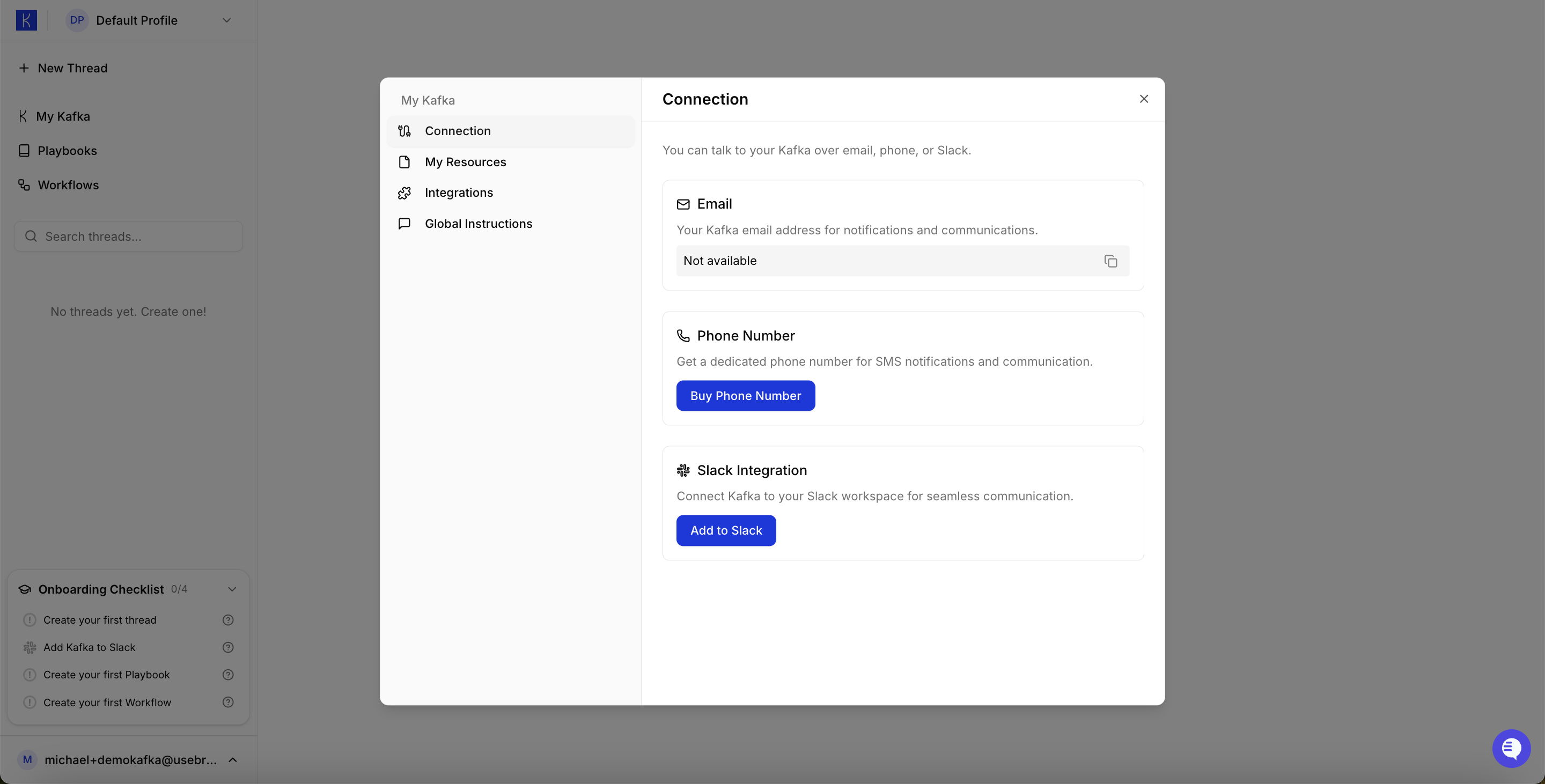 ## Available Connections
**Email**
Send tasks and requests via email. Kafka responds in threaded conversations.
**Phone Number**
Get a dedicated phone number for voice communication with Kafka.
**Slack** (Recommended)
Connect Kafka to your Slack workspace for seamless team collaboration.
## Using Slack
Slack is the most popular way to interact with Kafka. Once connected, anyone in your workspace can message Kafka directly.
## Available Connections
**Email**
Send tasks and requests via email. Kafka responds in threaded conversations.
**Phone Number**
Get a dedicated phone number for voice communication with Kafka.
**Slack** (Recommended)
Connect Kafka to your Slack workspace for seamless team collaboration.
## Using Slack
Slack is the most popular way to interact with Kafka. Once connected, anyone in your workspace can message Kafka directly.
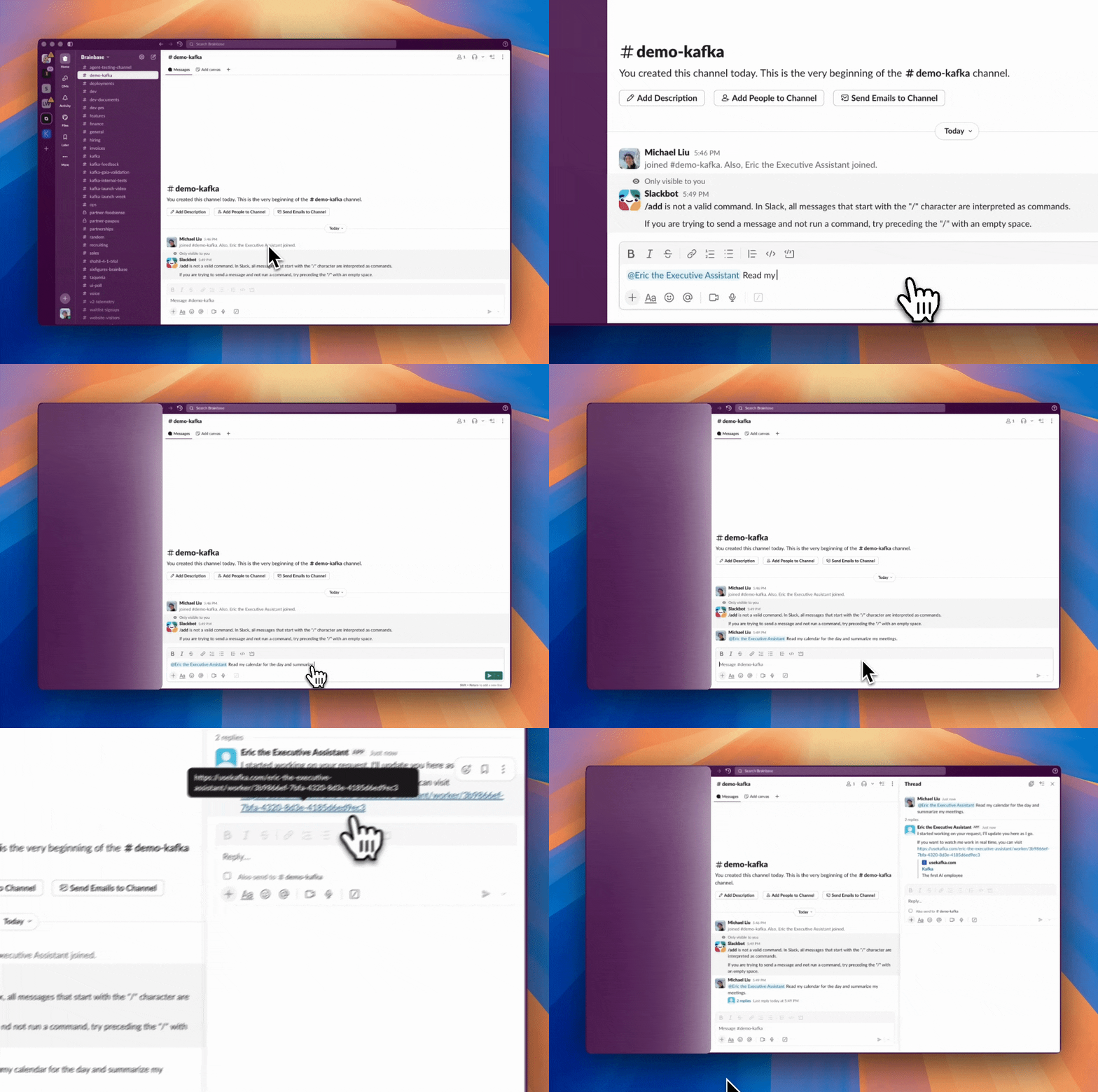 **How it works:**
1. Add Kafka to a Slack channel (e.g., `#demo-kafka`)
2. Message Kafka directly: `@demo-kafka summarize my emails`
3. Kafka responds in the thread with results
Anyone with access to the channel can interact with Kafka, making it perfect for team-wide AI Employee access.
## FAQs
**Can anyone message the agent on Slack?**
Yes, anyone with access to the channel that the agent is in can message the agent.
**How do I send a message to Kafka via Email?**
Send an email to your Kafka's dedicated email address (found in **My Kafka → Connection**). Kafka will respond via email thread.
**Can I limit who has access to my Kafka?**
Yes. For Slack, only users in channels where Kafka is added can interact with it. Use private channels for restricted access.
**Does Kafka remember previous conversations?**
Yes. Kafka maintains context within each thread. Start a new thread for unrelated topics.
**Can I use multiple connection types at once?**
Yes. You can enable Email, Phone, and Slack simultaneously. Kafka maintains separate conversation threads for each channel.
**What happens if multiple people message Kafka at the same time?**
Kafka handles concurrent requests. Each conversation thread operates independently.
**How do I remove Kafka from a Slack channel?**
Go to the channel, click the channel name, select "Integrations," and remove the Kafka app.
## Setting Up Connections
1. Go to **My Kafka → Connection**
2. Choose your connection type (Slack, Email, or Phone)
3. Follow the authentication flow
4. Test by sending a message to confirm it works
> **Note:** Slack connection requires the \$25 Starter plan.
**How it works:**
1. Add Kafka to a Slack channel (e.g., `#demo-kafka`)
2. Message Kafka directly: `@demo-kafka summarize my emails`
3. Kafka responds in the thread with results
Anyone with access to the channel can interact with Kafka, making it perfect for team-wide AI Employee access.
## FAQs
**Can anyone message the agent on Slack?**
Yes, anyone with access to the channel that the agent is in can message the agent.
**How do I send a message to Kafka via Email?**
Send an email to your Kafka's dedicated email address (found in **My Kafka → Connection**). Kafka will respond via email thread.
**Can I limit who has access to my Kafka?**
Yes. For Slack, only users in channels where Kafka is added can interact with it. Use private channels for restricted access.
**Does Kafka remember previous conversations?**
Yes. Kafka maintains context within each thread. Start a new thread for unrelated topics.
**Can I use multiple connection types at once?**
Yes. You can enable Email, Phone, and Slack simultaneously. Kafka maintains separate conversation threads for each channel.
**What happens if multiple people message Kafka at the same time?**
Kafka handles concurrent requests. Each conversation thread operates independently.
**How do I remove Kafka from a Slack channel?**
Go to the channel, click the channel name, select "Integrations," and remove the Kafka app.
## Setting Up Connections
1. Go to **My Kafka → Connection**
2. Choose your connection type (Slack, Email, or Phone)
3. Follow the authentication flow
4. Test by sending a message to confirm it works
> **Note:** Slack connection requires the \$25 Starter plan.